Commerce
How to Sell Physical Products (2026)
How to Sell Physical Products From Your Link in Bio (2026 Guide)
by

Jules Agar

How to Sell Physical Products From Your Link in Bio (2026 Guide)
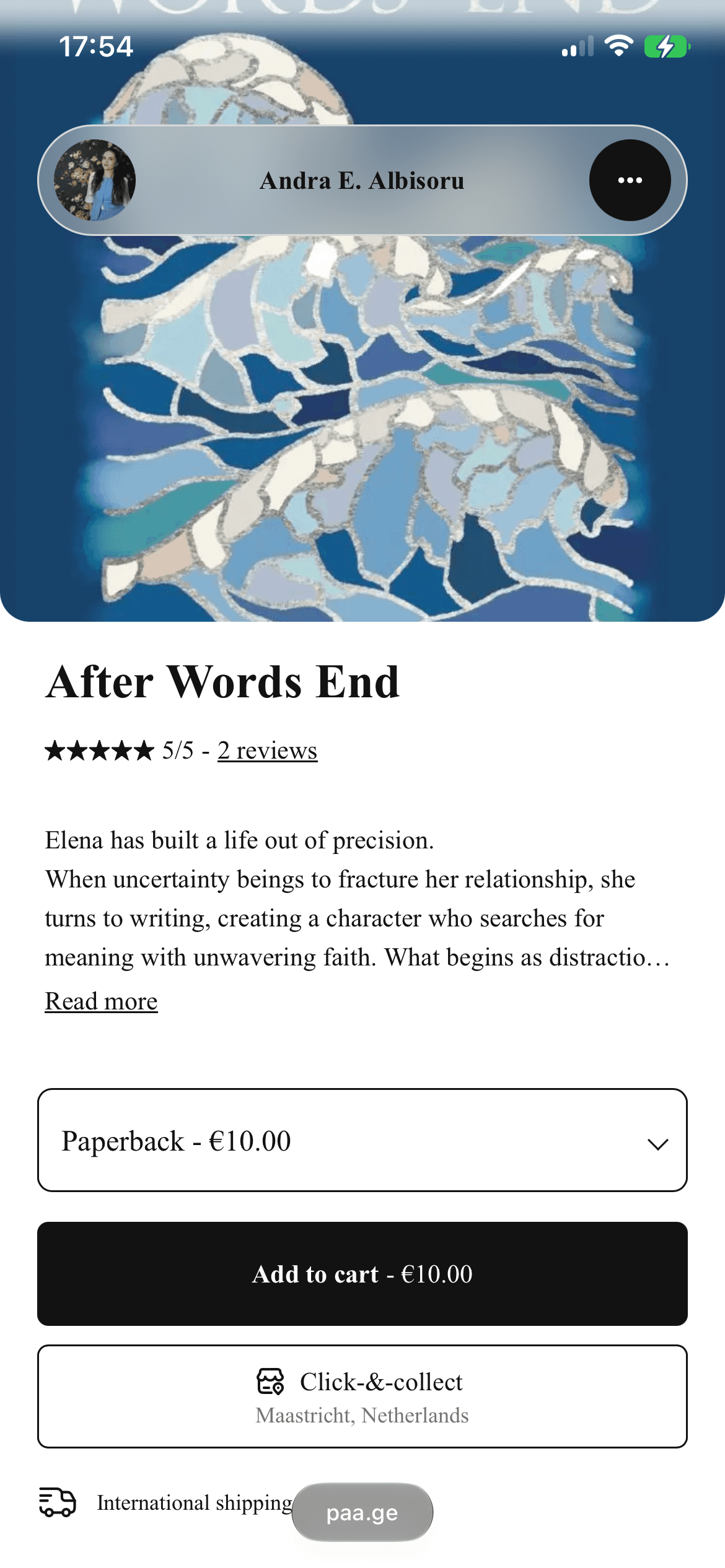
If you're a creator, artist, or small business selling anything that ships — merchandise, prints, handmade goods, food, accessories — your link in bio can become a full storefront instead of just a list of links. This guide walks through exactly how to set that up: creating your first physical product, adding variants, tracking inventory, setting shipping rules, and getting through checkout — plus how this compares to doing the same thing on Stan Store or Beacons.
Why Sell Physical Products From Your Bio Link?
Your social profiles already send visitors somewhere every day — the question is whether that visit ends in a sale or just a scroll. A bio link with a real storefront turns that existing traffic into a transaction without redirecting people through a separate website, marketplace listing, or DM negotiation. For creators with branded merchandise, artists selling prints, or small businesses fulfilling local orders, that shorter path from "saw it on Instagram" to "bought it" is the entire point of selling from a link in bio rather than a standalone store.
The setup below assumes you're starting from scratch, but the same steps apply if you're migrating an existing shop from another platform — you'll just be re-entering products you've already photographed and priced.
What You Need Before You Start
A Paage account (free to create)
Product photos (at least one clear image per product; more for variants)
Your shipping policy decided in advance: which countries/regions you'll ship to, and roughly what it costs
A connected payment processor (Stripe or PayPal) to receive payouts
Step 1: Create Your Product Listing
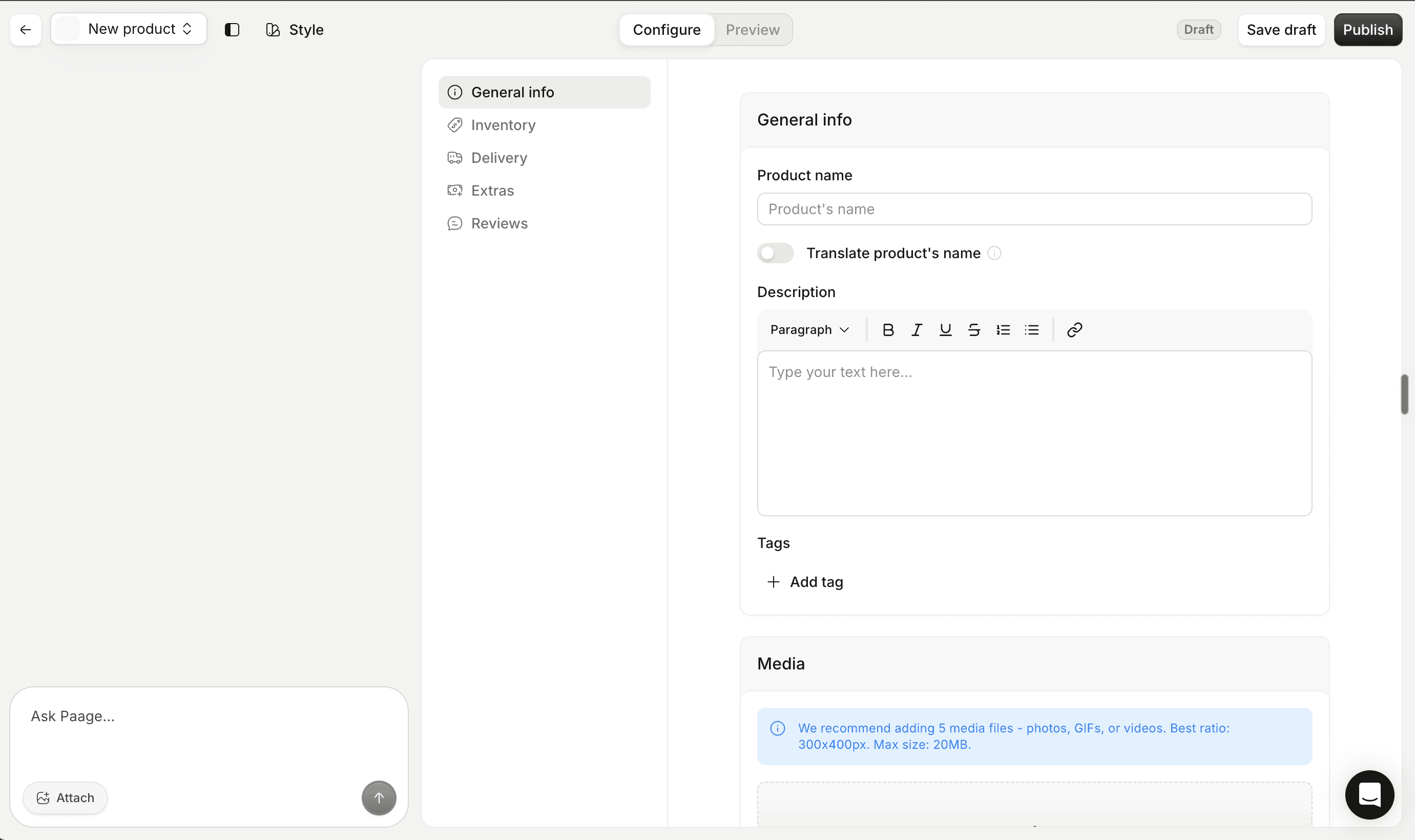
From your Paage dashboard, choose Physical Product as the product type. Add:
Product name and description — be specific about materials, sizing, and what's included
Photos — Paage recommends multiple images per product; product cards display best with clean, well-lit photos
Price — set your base price before variants (some variants can carry price adjustments)
Step 2: Add Variants
Most physical products come in more than one option. In the product editor, add variants for:
Sizes
Colors
Materials
Custom variations or limited editions
Each variant can carry its own image, so buyers can see exactly what they're choosing before checkout — this alone reduces returns and pre-purchase questions.
Step 3: Set Up Inventory Tracking
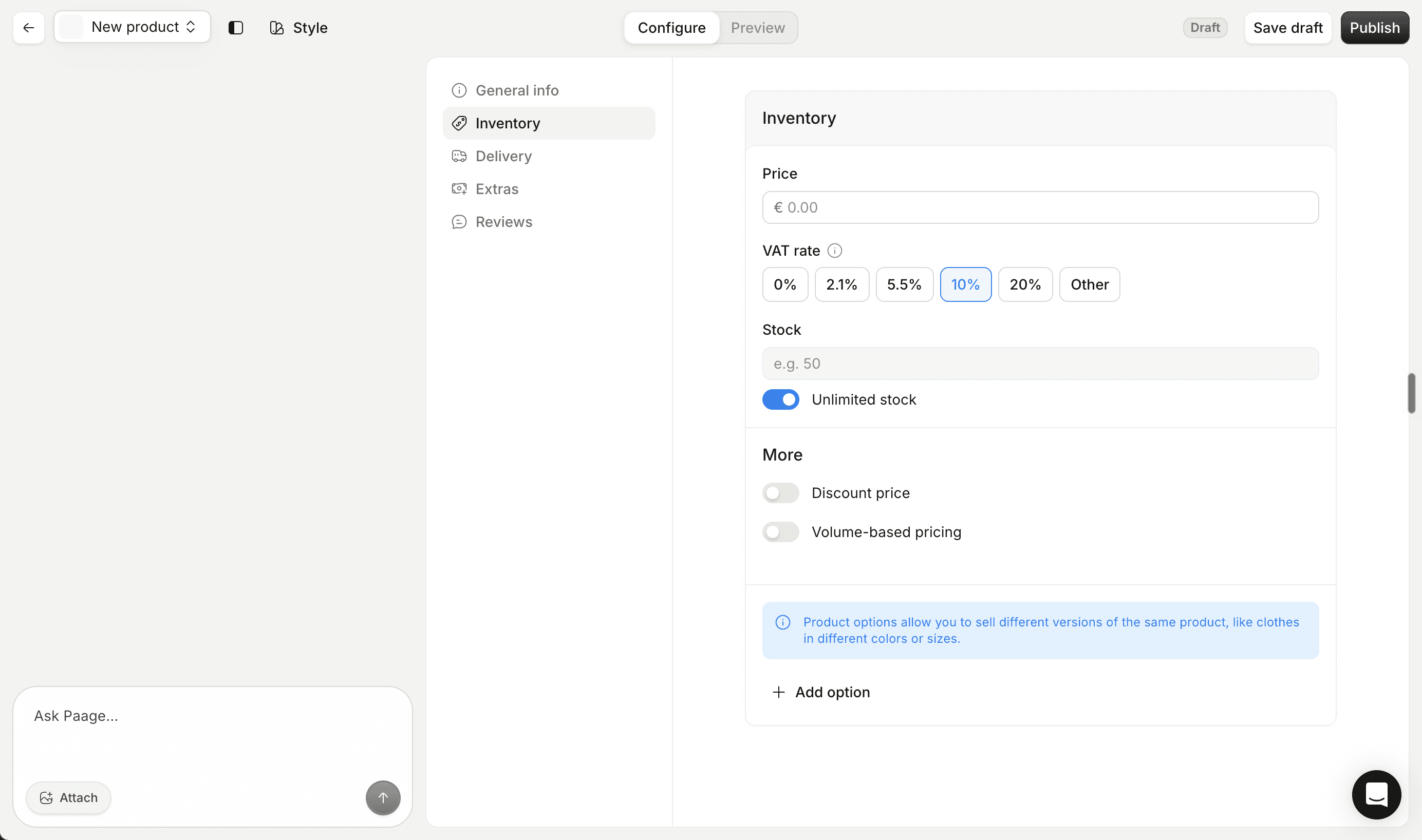
Under the Inventory tab, set stock levels per variant (not just per product). Paage will:
Automatically mark a variant as Sold Out when stock hits zero
Let you set a product as unlimited if restocking isn't a concern
Update your storefront in real time as orders come in
This is the step most link-in-bio tools skip. On platforms without native inventory tracking, you're stuck manually checking a spreadsheet before confirming every order — which doesn't scale past a handful of sales a week.
Step 4: Configure Shipping Rules
Under Delivery, set your shipping logic:
Choose which countries, regions, or shipping zones you'll serve
Offer local pickup or local delivery if relevant to your business
Set different rates for different zones (domestic vs. international, for example)
Customers only ever see the shipping options that apply to their own location — so someone browsing from outside your shipping area won't hit a confusing checkout error.
Step 5: Review Checkout and Publish
Preview your checkout flow before publishing:
Customer selects the product and variant
Customer enters shipping information
Customer completes payment
You receive the order in your dashboard, ready to fulfill
Once you're happy with how it looks on mobile (most of your traffic will arrive from Instagram, TikTok, or YouTube bios), hit publish.
Step 6: Fulfill and Mark Orders as Shipped
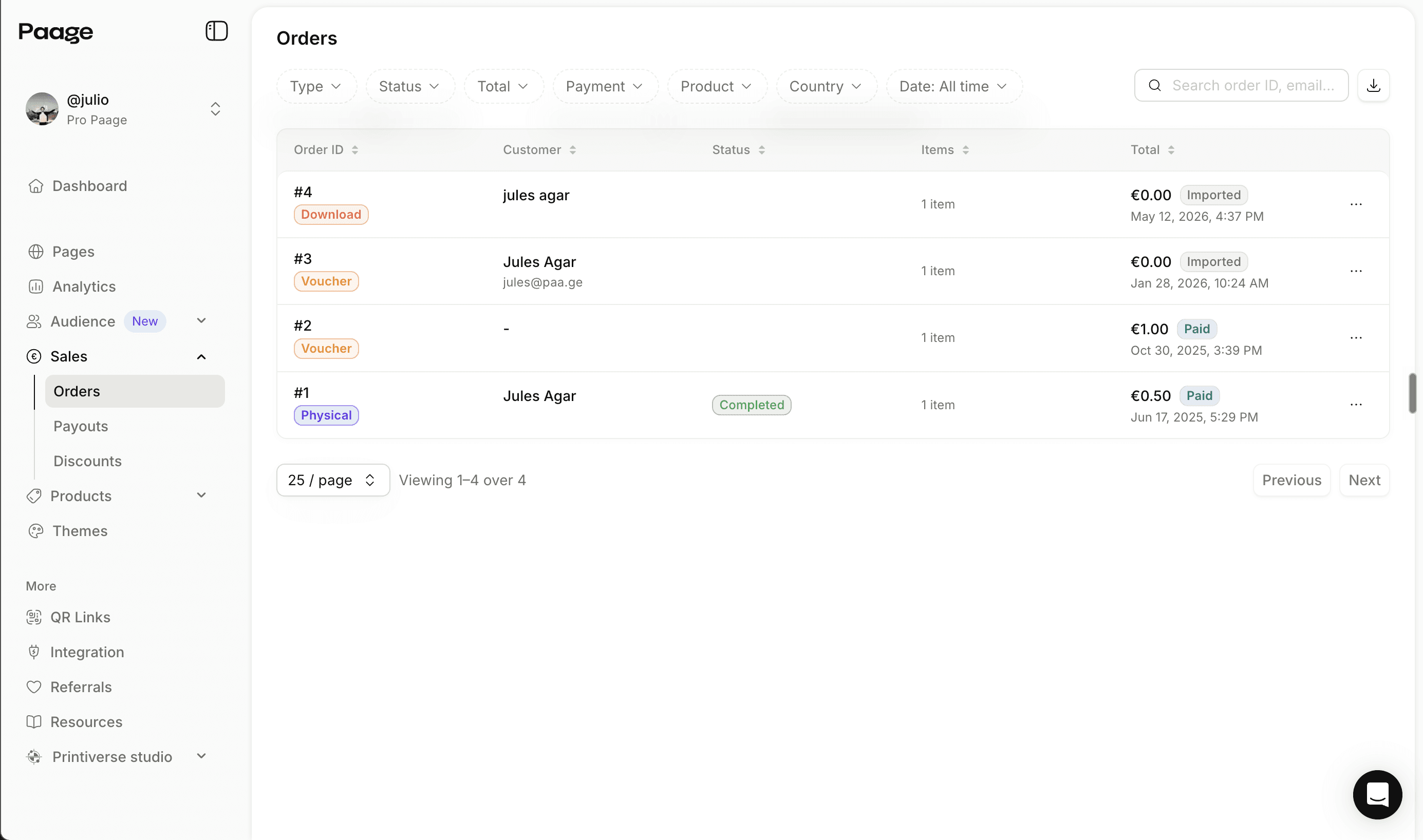
When an order comes in, update its status from your dashboard: mark it shipped, add a tracking number and carrier, and Paage keeps the customer informed automatically. Clear fulfillment communication reduces support messages and builds repeat-buyer trust.
How This Compares to Other Link-in-Bio Platforms
Platform | Physical product support |
|---|---|
Paage | Native: variants, per-variant stock, auto sold-out, shipping rules by zone |
Stan Store | Workaround only — generic "Custom Product," no inventory or shipping automation (details) |
Beacons | Workaround only — listed under "digital download" category, manual shipping (details) |
Lnk.Bio | Basic listing, limited variant and inventory depth |
If your catalog is only digital, this distinction won't matter. The moment you add anything that ships, it becomes the deciding factor between platforms.
Frequently Asked Questions
Can I sell a mix of physical and digital products on the same page?
Yes. Physical products sit alongside digital downloads, gift cards, and paid events in the same storefront, so you don't need a separate tool for each product type.
Do I need to calculate shipping costs manually?
No — you configure shipping rules by zone once, and the correct rate is applied automatically at checkout based on the customer's location.
What happens when a product variant sells out?
It's automatically marked Sold Out on your storefront the moment stock reaches zero for that specific variant, so you never oversell.
Can I offer local pickup instead of shipping?
Yes, local pickup and local delivery are both configurable shipping options alongside standard shipping zones.
How is this different from just listing a product as "digital" and shipping it manually?
Platforms without native physical-product support require you to track stock in a separate spreadsheet, calculate shipping by hand, and manage fulfillment outside the platform entirely. Native support removes all three of those manual steps.
Can I track which products are my best sellers?
Yes, your sales dashboard shows product performance, order status, and revenue trends so you can see what to restock or discontinue.
Do customers need to create an account to buy from me?
No — checkout is designed to be completed in a few taps without requiring the buyer to set up an account first.
Start Selling Physical Products Today
Whether you're launching your first product drop or moving an existing shop into your bio link, the setup takes minutes, not days. Create your free Paage store and add your first physical product.
Related reading: Paage vs. Stan Store · Paage vs. Beacons · Best Link-in-Bio Platforms in 2026 · How to Sell a PDF Online
Create your
Paage now
Good news, it’s free.